Edit Order
To update, manage, and refine existing contracts, billing rules, documents, members, and notes. Editing orders ensures financial accuracy and contractual compliance.
1. Order Details
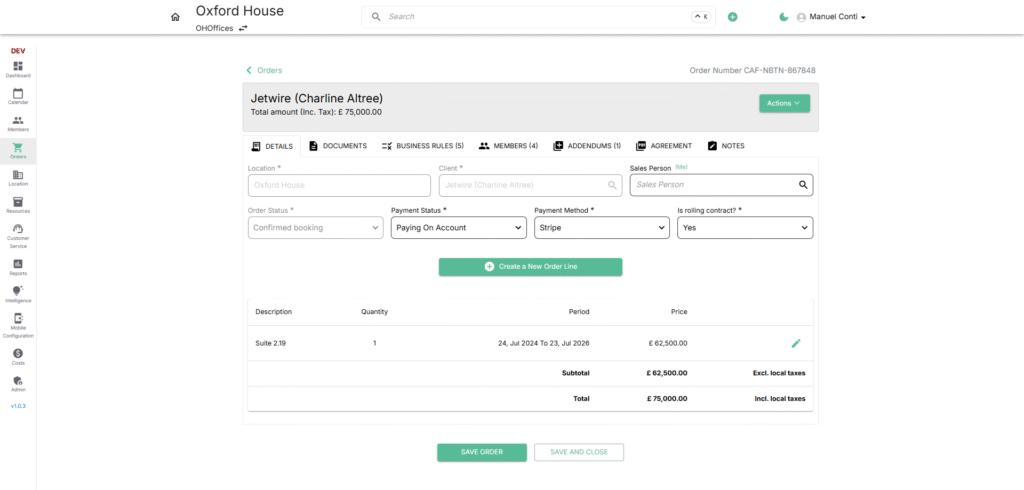
The Details tab captures the essential information of an order, such as client details, payment setup, status, and order lines. It serves as the foundation for billing, contract management, and revenue tracking. Order line can also be edited from this page for specific product and its particular time-frame.
2. Documents
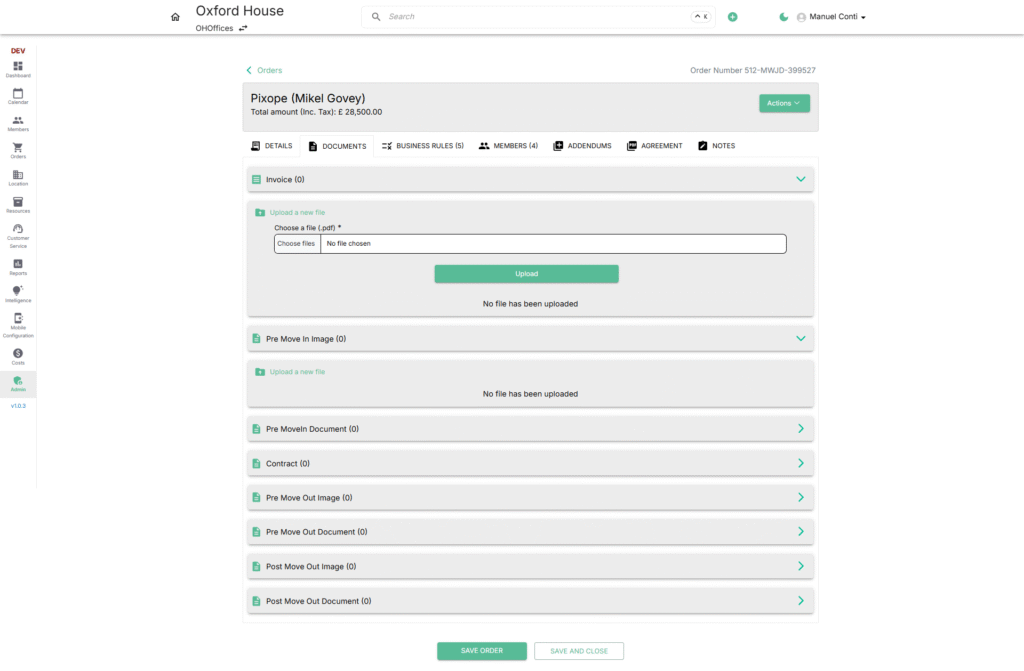
The Documents tab centralizes all files related to an order. It ensures that invoices, contracts, move-in/out documents, and supporting files are securely stored and easily accessible. This section helps operators maintain audit trails and compliance records for every customer order.
3. Business Rules
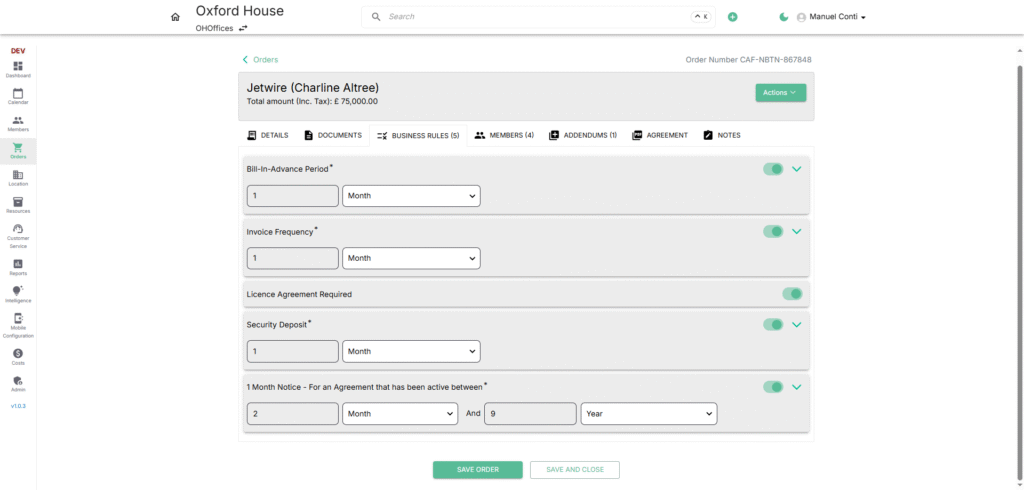
The Business Rules tab defines the contractual and financial framework for each order. These rules govern billing cycles, deposits, invoicing, and notice periods, ensuring consistency and compliance across all agreements. These rules provide flexibility while maintaining standardized financial operations.
4. Members
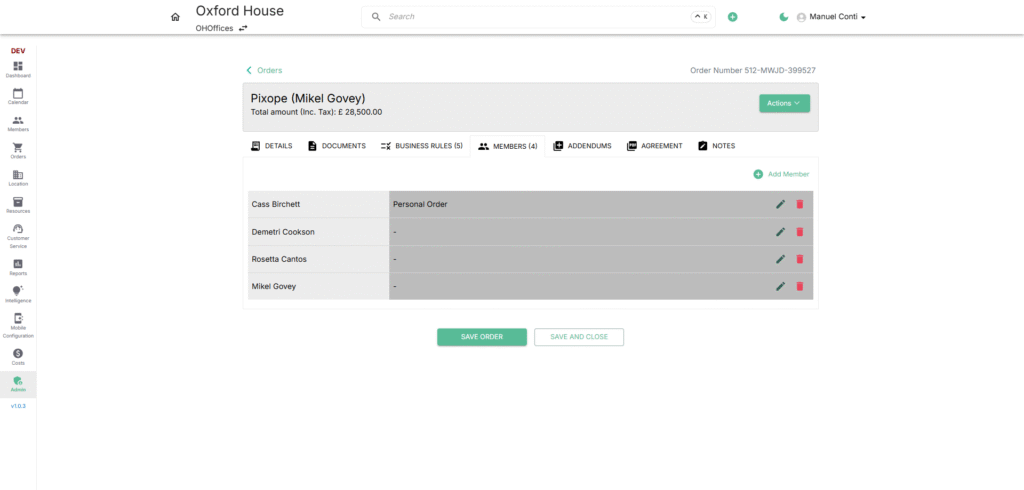
The Members tab links individual members to a specific order. This ensures that every person covered under the contract is documented, whether it’s for a personal order, shared workspace allocation, or company-wide booking.
- ➕ Add – Allows operators to add new individuals to the order.
- ✏️ Edit – Update the member’s order type or details.
- 🗑 Delete – Remove a member from the order if no longer applicable.
5. Addendums
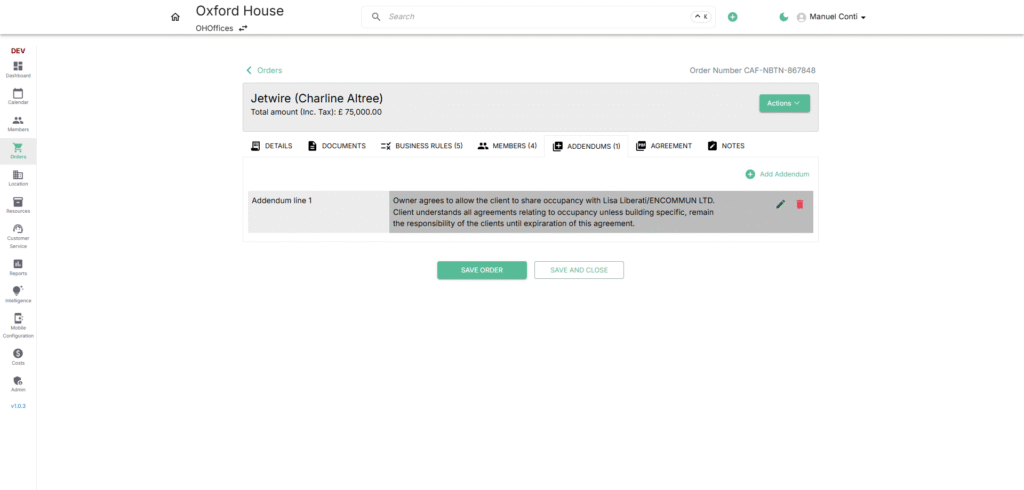
The Addendum tab allows operators to attach additional clauses or modifications to an existing order agreement. Addendum’s ensure that any special conditions, exceptions, or client-specific adjustments are documented and legally tied to the order.
- ➕ Add – Opens a new line for entering an additional clause.
- ✏️ Edit – Update the text of an existing addendum.
- 🗑 Delete – Remove an addendum if no longer applicable.
6. Agreement
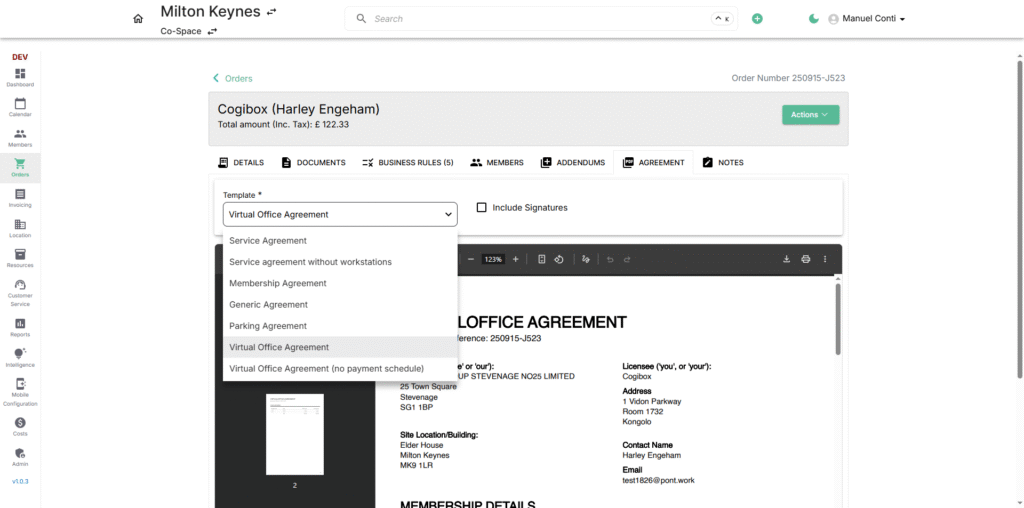
The Agreement tab is where legal and contractual documents are generated, managed, and linked to an order. It ensures every order has a binding agreement that defines terms, payment rules, and obligations between the customer and the operator. It provides toggle to embed digital signature fields directly in the agreement.
Available Templates (examples from system):
Select from predefined agreement types. Each template is standardized but can be customized per order.
- Service Agreement – Standard workspace or service contract.
- Service Agreement without Workstations – For clients not tied to specific desks.
- Membership Agreement – For co-working or flexible memberships.
- Generic Agreement – A universal template for custom contracts.
- Parking Agreement – For parking space contracts.
- Virtual Office Agreement – For virtual office clients.
- Virtual Office Agreement (No Payment Schedule) – Simplified template without recurring payment terms.
Document Actions
- Download (⬇️) – Save the agreement PDF locally.
- Print (🖨️) – Generate a hard copy for physical signing.
- Save to Order – Store the generated agreement under the order’s record for future reference.
7. Notes
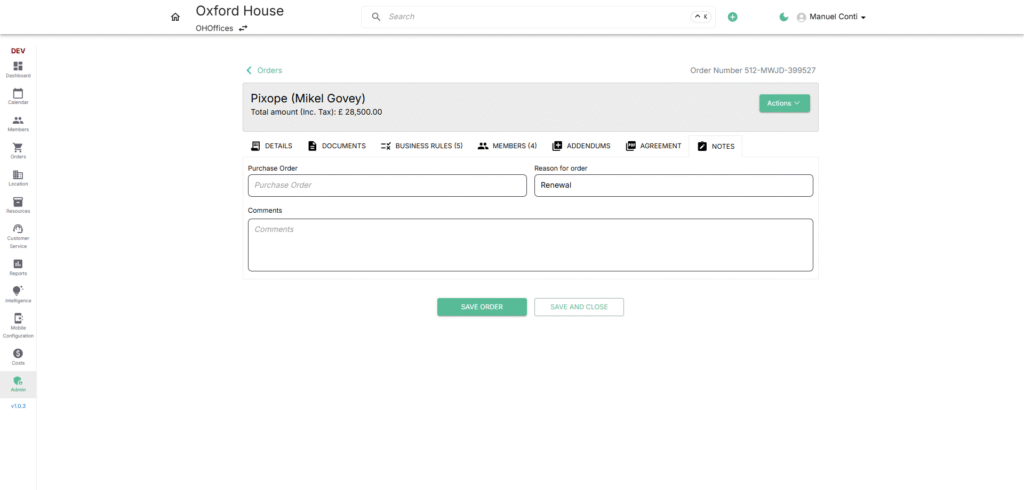
Capture internal or customer-facing notes for the order.
- Comments – Free-text field for additional details.
- Purchase Order – Reference number for financial tracking.
- Reason for Order – Business context (Renewal, Upgrade, New Contract).
📌 Miscellaneous Actions
Alongside editing details, documents, business rules, agreements, and members, the Orders module provides additional actions for managing contract life cycles.
1️⃣ Request Termination
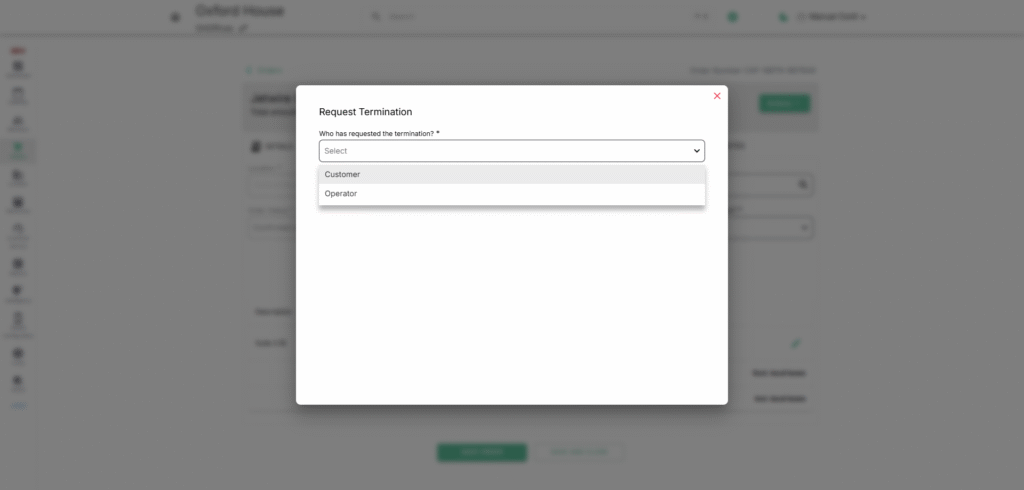
The Request Termination option allows to record termination requests. Helps track accountability for why and by whom the termination was initiated.
- Who has requested the termination?*
- Customer → Indicates the termination request was raised by the client.
- Operator → Indicates the termination request was initiated internally.
🏢 Log Operator-Initiated Termination
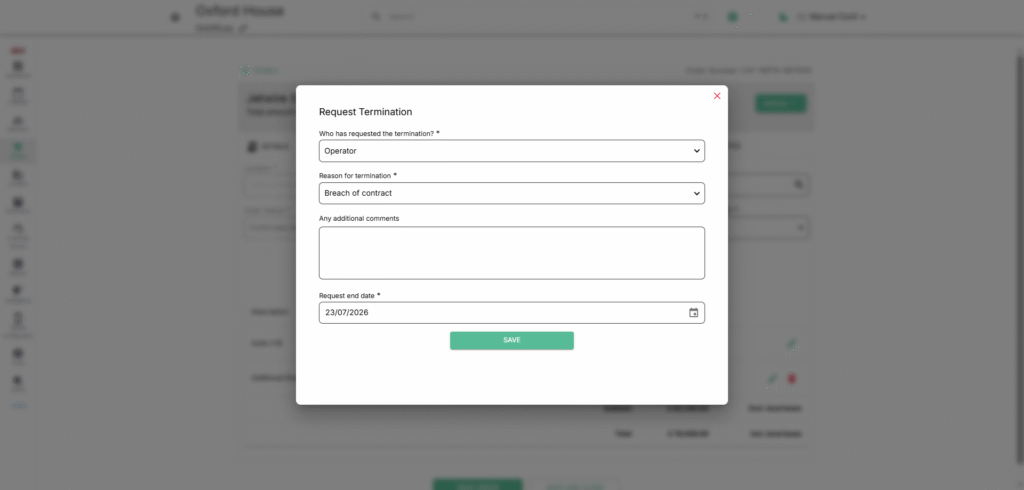
- Select Operator as requester.
- Choose Reason for termination (e.g., Breach of Contract, Agreement reached with Customer, Moving to another location in group, Internal Move, Other).
- Optionally add Any additional comments.
- Set Request end date.
👤 Log Customer-Initiated Termination
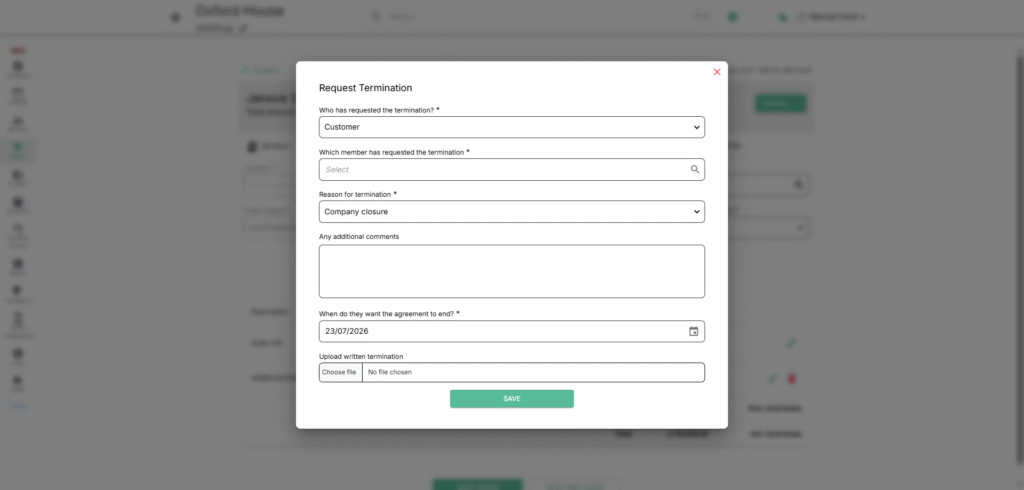
- Select Customer as requester.
- Choose the Member who submitted the request.
- Select Reason for termination (e.g., Company Closure, Location not right, Cheaper elsewhere, Other).
- Optionally add Any additional comments.
- Set Agreement end date.
- Upload Written Termination Document.
2️⃣ Renew Order
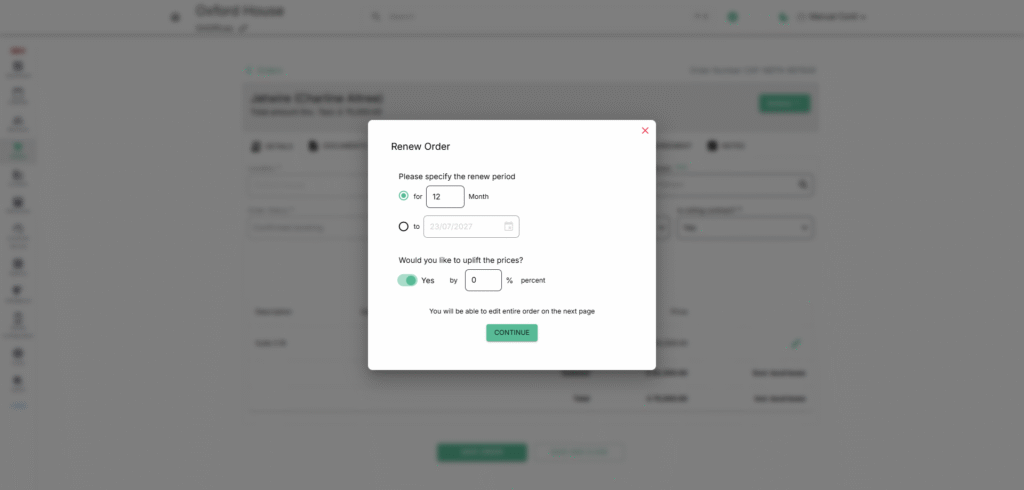
The Renew Order option is used to extend an existing order contract. Ensures smooth contract continuation while applying updated pricing terms.
- Renew Period
- Choose either:
- For X months → Enter the number of months to renew.
- To Date → Select a specific end date.
- Choose either:
- Uplift Prices
- Toggle Yes/No.
- Apply a percentage uplift to automatically increase order prices during renewal.
3️⃣ Mark as Renewed
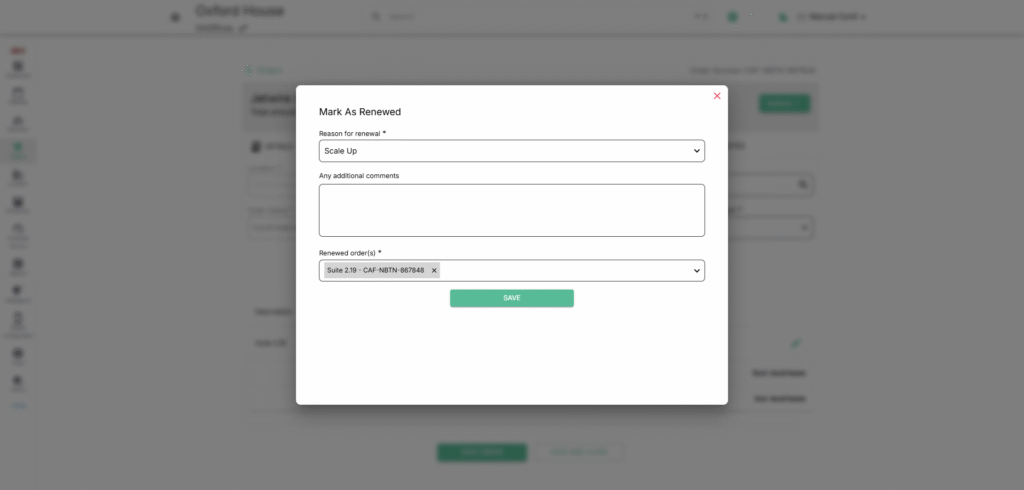
The Mark as Renewed option links an existing order with its renewal.
- Reason for Renewal*
- Select from predefined reasons (e.g., Scale Up, Scale Down, Same Requirements).
- Additional Comments
- Enter notes or clarifications regarding the renewal.
- Renewed Order(s)*
- Select the order created as the renewal reference.