Individual Member Details
🔎 Overview
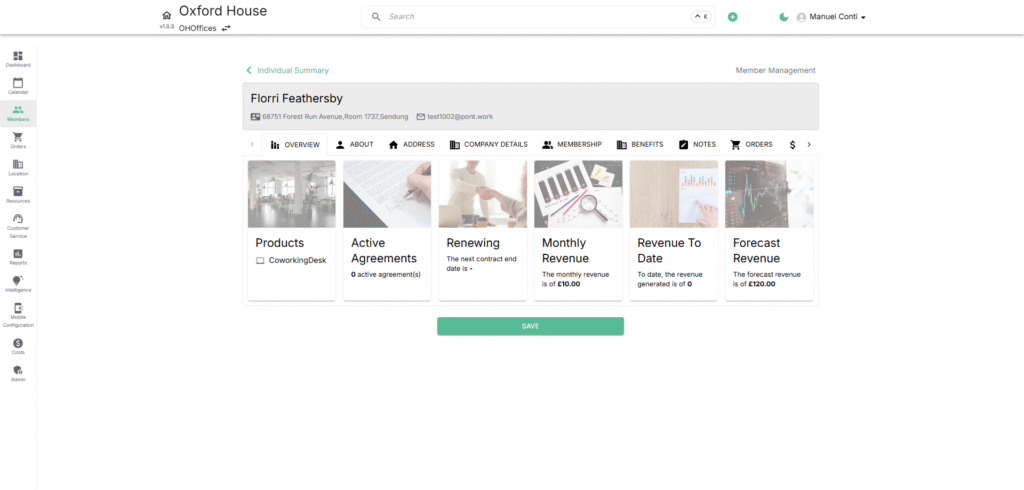
Purpose: Provides a quick snapshot of the member’s activity, financial performance, and agreements.
Key Fields:
- Products: Displays active products linked to the member (e.g., coworking desk, office suite).
- Active Agreements: Number of ongoing agreements and contracts.
- Renewing: Shows the next renewal/contract end date.
- Monthly Revenue: Revenue generated monthly by this member.
- Revenue To Date: Total accumulated revenue to date.
- Forecast Revenue: Projected future earnings based on agreements and services.
📑 About
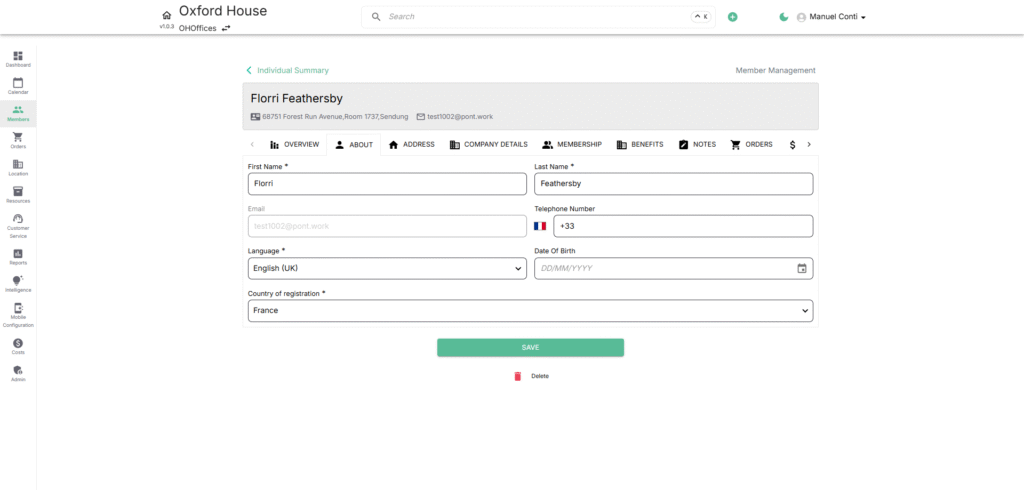
Purpose: Store the member’s core personal information.
Key Fields:
- First Name / Last Name: Legal name of the individual.
- Email: Primary contact email (auto-generated when member is created).
- Telephone Number: Contact number in international format.
- Language: Preferred communication language.
- Date of Birth: For record purposes (optional).
- Country of Registration: Default country assigned.
📍 Address
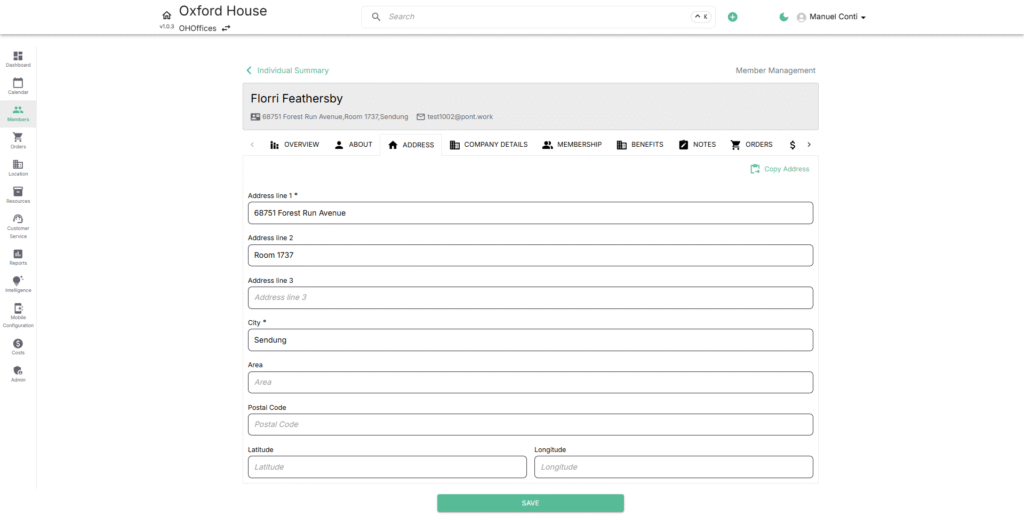
Purpose: Manage the member’s personal or business address for correspondence and billing.
Key Fields:
- Address Line 1–3: Street address, suite, or building details.
- City: Member’s city of residence.
- Area: Additional locality or neighbourhood detail.
- Postal Code: ZIP or postal code.
- Latitude & Longitude: (Optional) Geo-coordinates for accurate mapping.
- Copy Address: Allows duplication of an existing linked address.
🏢 Company Details
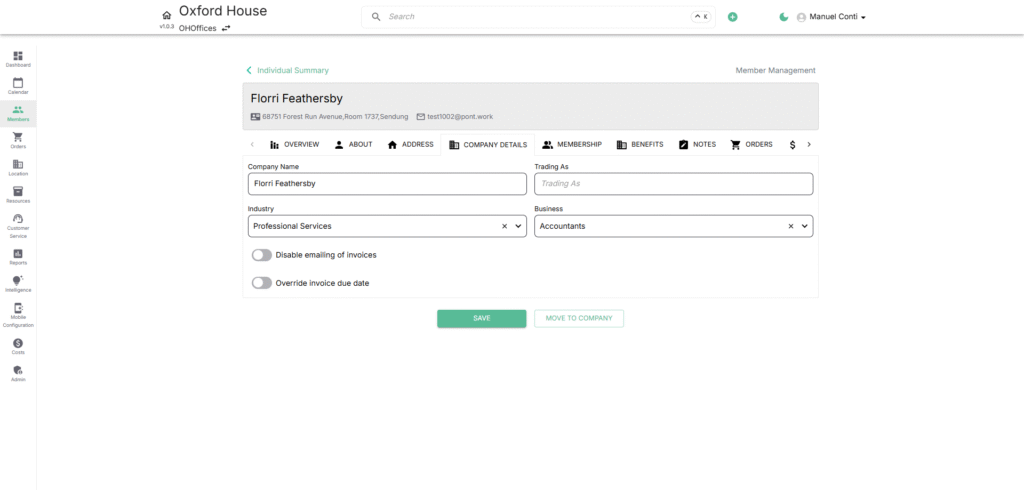
Purpose: Capture professional or corporate association details.
Key Fields:
- Company Name: Linked company or employer.
- Trading As: If operating under a different trade name.
- Industry / Business: Standardized classification (e.g.,Professional Services, Office Facilities, Retail Distribution etc).
- Disable emailing of invoices: Toggle to stop automated invoice delivery.
- Override invoice due date: Set custom invoice payment terms by choosing payment due options and payment due by.
✨ Thinking of converting an Individual to Contact?
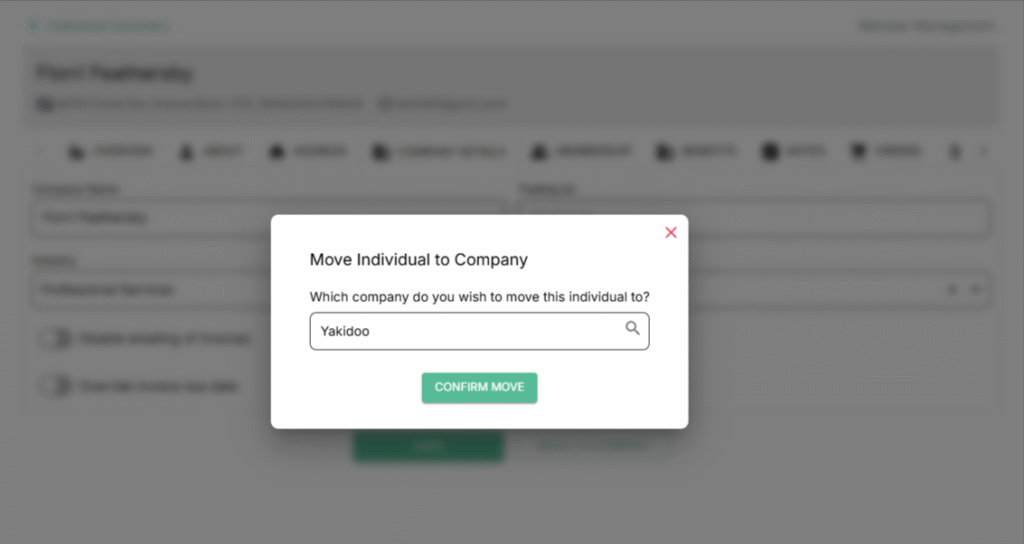
Follow the below steps:
- Navigate to Company Details.
- Click on Move to Company.
- Choose company name and confirm it to move.
🎟️ Membership
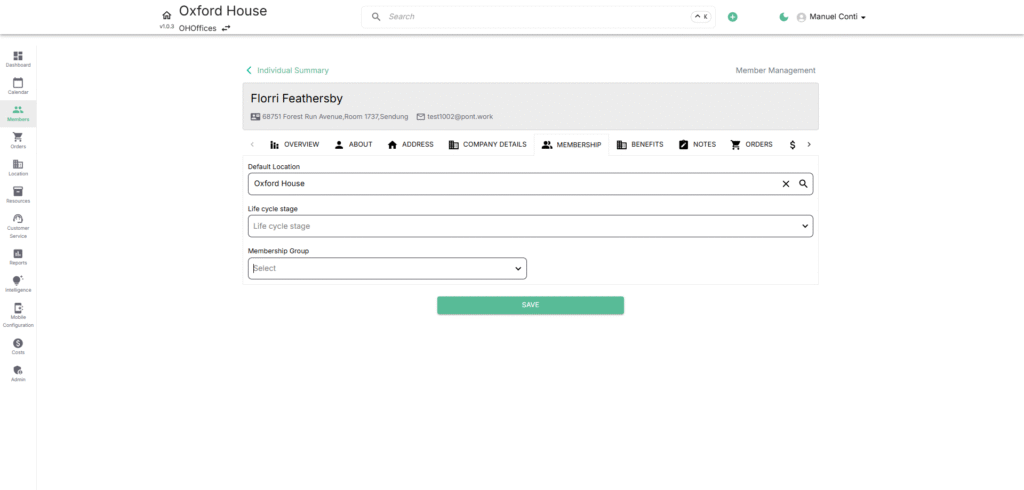
Purpose: Manage the member’s membership within the organization.
Key Fields:
- Default Location: Primary site the member is linked to.
- Life Cycle Stage: Current stage (e.g., Lead, Prospect, Opportunity, Customer, Evangelist, Churn Risk, Former Client).
- Membership Group: Represents membership groups added for the operator.
🎁 Benefits
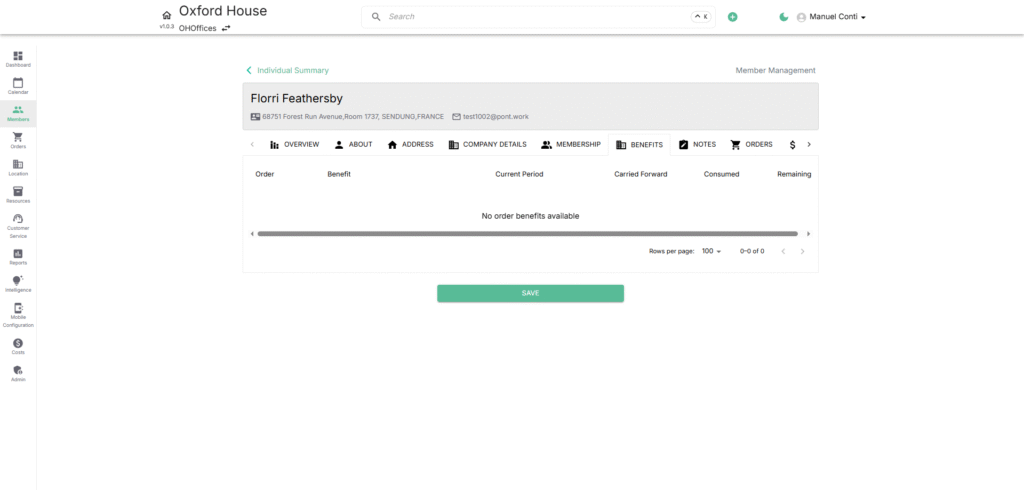
Purpose: Track member’s entitlements and perks.
- Lists allocated benefits (like meeting room credits, discounts, partner services).
- Helps manage value-added services to the member.
📝 Notes
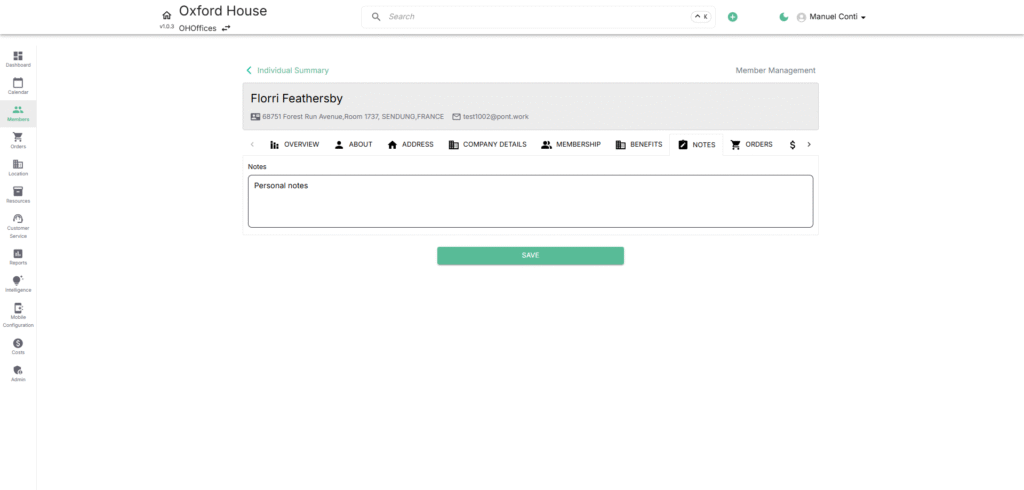
Purpose: Store internal notes or personal remarks about the member.
- Notes Field: Free text space to record interactions, reminders, or special requests.
🛒 Orders
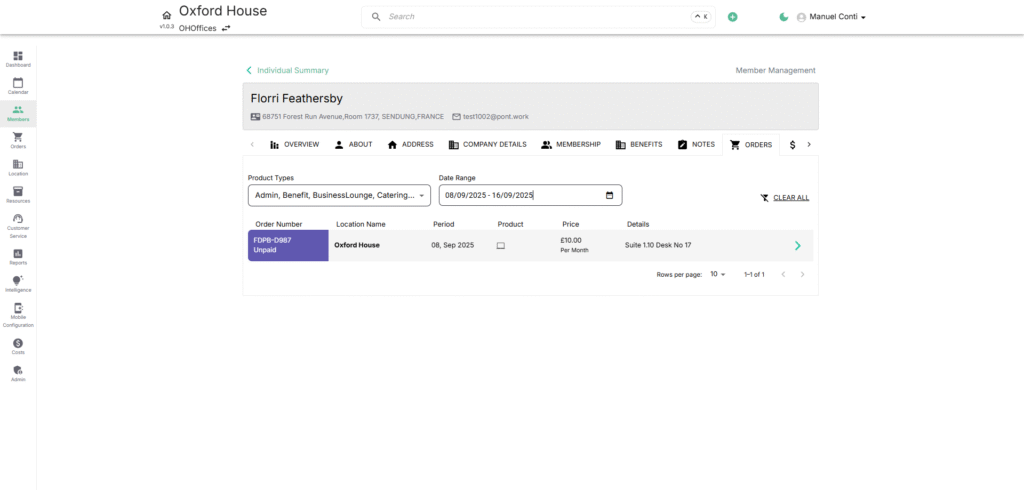
Purpose: List all orders placed by the member.
Key Features:
- Filters: Sort by product type or date range.
- Order Number: Unique transaction ID.
- Location: Associated location.
- Period & Product: Booking/service period and product purchased.
- Price & Details: Financials and service details (e.g., suite number).
💰 Deposits
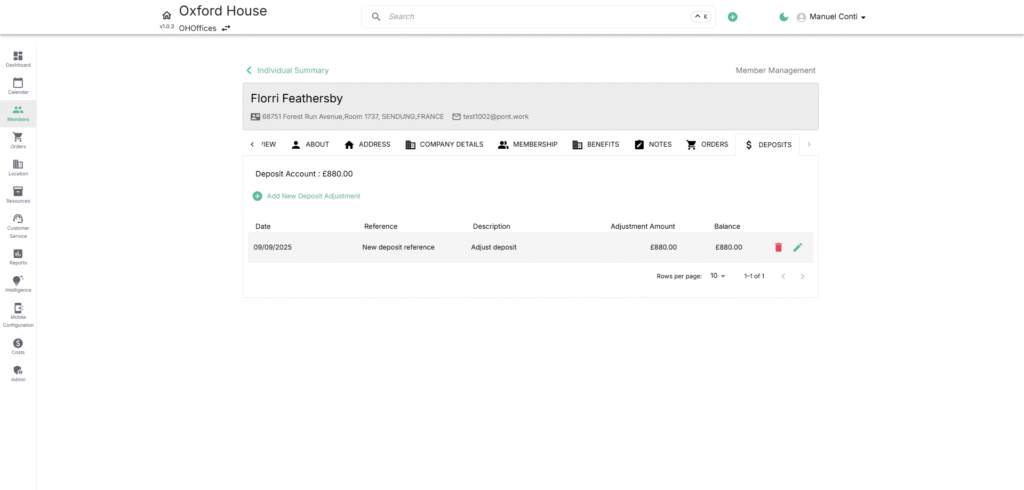
Purpose: Manage financial deposits held for the member.
Key Fields:
- Deposit Account: Current balance of deposits.
- Add New Deposit Adjustment: Add/edit deposit references or adjustments.
- Date / Reference / Description: Details of the adjustment.
- Adjustment Amount / Balance: Financial breakdown of deposits.
➕ Add Deposit Adjustment
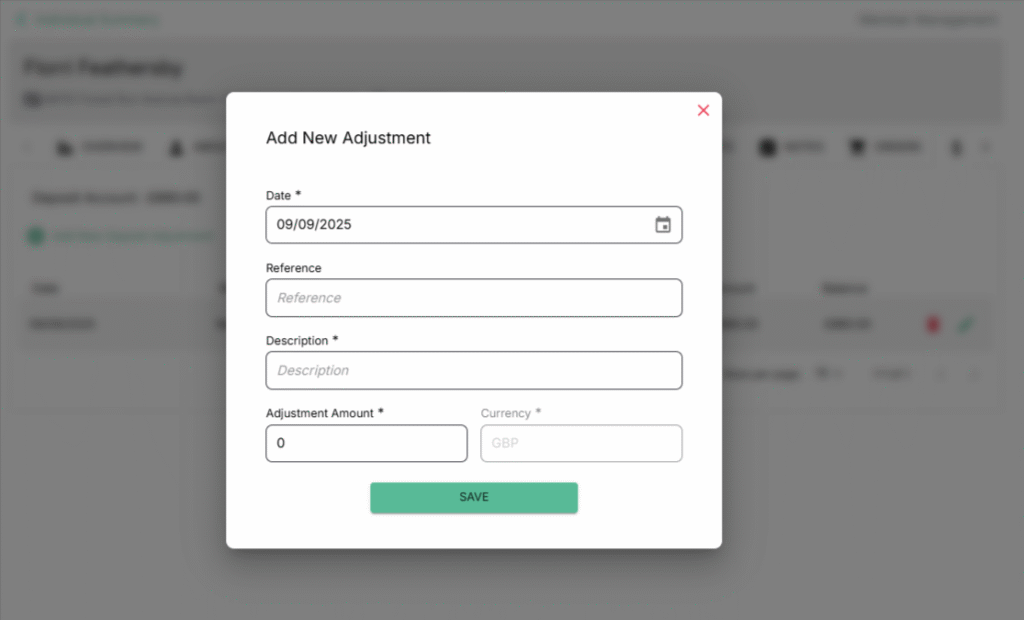
This action allows to manually adjust a company’s deposit account for scenarios such as refunds, additional deposits, or correcting errors.
🔑 Fields Explained
- Date* → The effective date of the adjustment.
- Reference → A unique identifier (e.g., invoice number, transaction ID).
- Description* → A brief explanation of why the adjustment is being made (e.g., “Deposit Refund” or “Top-up”).
- Adjustment Amount* → The exact value of the adjustment (positive = add funds, negative = reduce funds).
- Currency* → The currency in which the adjustment is made (auto-mapped to the company’s base currency).