Edit Space
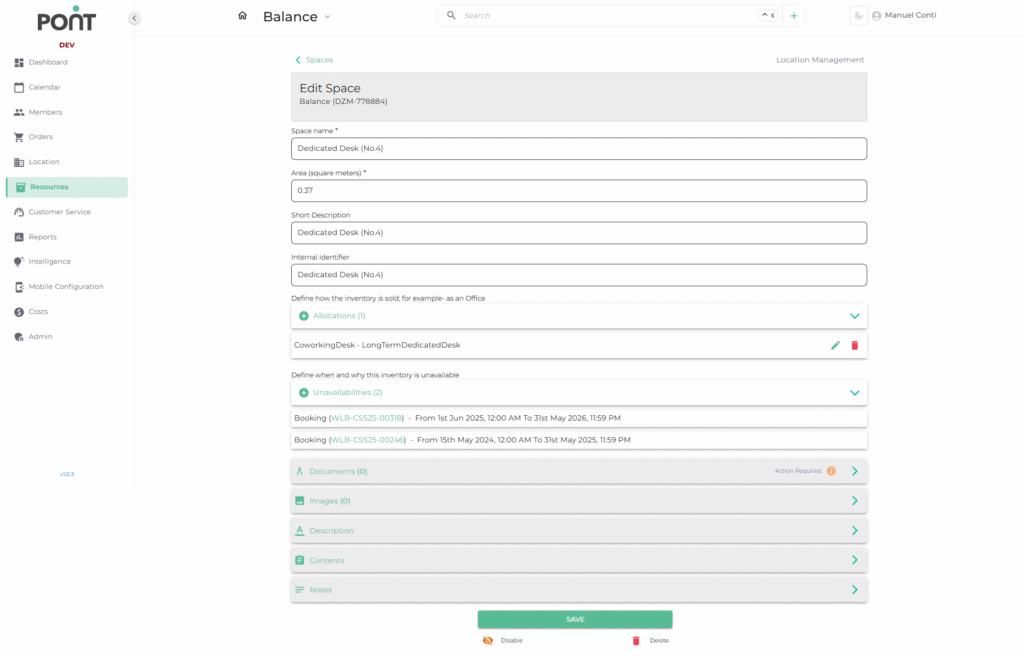
The Edit Space feature allows operators to update all details of an existing space — including basic details, allocation, pricing, availability, and supporting materials such as documents and images. Keeping these details accurate ensures seamless operations and a consistent customer experience.
🔑 Key Fields
- Space Name – The official name of the space.
- Area (sqm) – Defines the size of the space in square meters.
- Short Description – Brief description for internal or customer-facing use.
- Internal Identifier – A unique ID used for internal tracking.
- Allocations – Defines how the space is categorised and sold.
- Unavailabilities – Allows operators to define when and why a space is unavailable for booking.
- Documents – Upload essential files linked to the space to keep all relevant materials in one place. Eg: Joining Instructions, Terms and Conditions, Health & Safety Guidelines, Other supporting documentation.
- Images – Showcase the space visually to customers and internal teams. Eg: Main or Additional Images.
- Description – A detailed narrative outlining the space’s purpose, features, and benefits.
- Contents – Provide a structured list of amenities, facilities, or special instructions associated with the space.
- Notes – A section reserved for internal use to record operational remarks, instructions, or historical information about the space.
💰 New Resource Allocation and Pricing
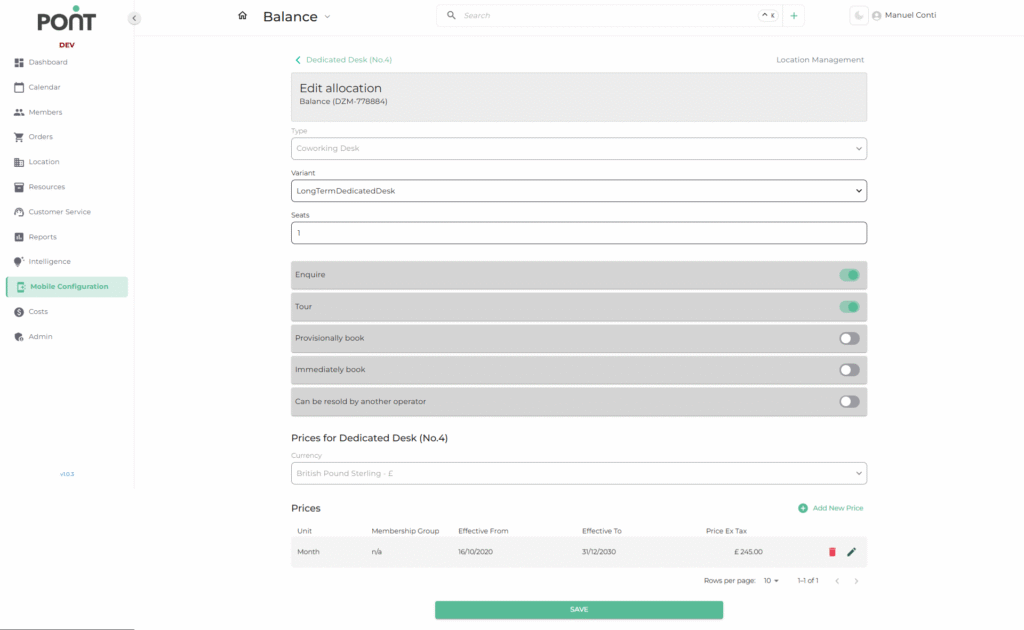
The Allocation section specifies how a space is utilized and sold.
⚙️ Steps to Add/Edit Allocation
- Type – Select the type (e.g., Coworking Desk, Meeting Room, Office, Event, Day pass etc).
- Variant – Choose a variant based on the selected type (e.g., LongTermDedicatedDesk,Standard Desk, Hotdesk etc).
- Seats – Specify the number of seats available.
🔔 Booking Controls
- Enquire – Enables potential customers to inquire.
- Tour – Allows scheduling of tours for the space.
- Provisionally Book – Temporarily reserves the space.
- Immediately Book – Allows instant bookings.
- Can Be Resold by another Operator – Enables reselling by other operators.
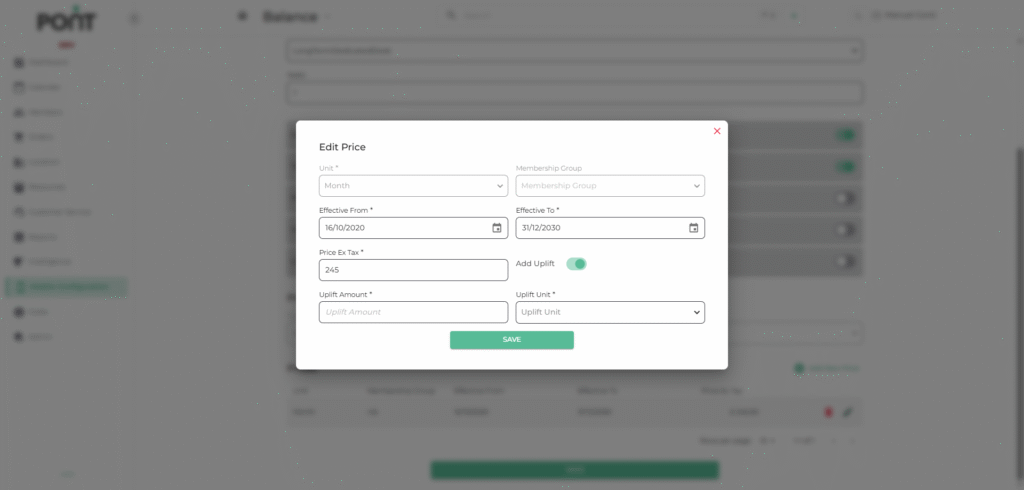
Pricing defines how the space is charged to customers.
📝 Pricing Fields
- Unit – The billing period (Hour / Day / Month / Week / Minute / DeskPerMonth / DeskPerDay).
- Membership Group – Choose membership group Ex: Executive (if applicable).
- Effective From / To – Define the date range for this pricing.
- Price Ex Tax – The base price excluding taxes.
- Add Uplift – Optional feature to increase price by a defined percentage or amount.
- Uplift Unit & Amount – Choose how uplift is applied (Percentage, Money etc).
🚫 Add New Unavailability
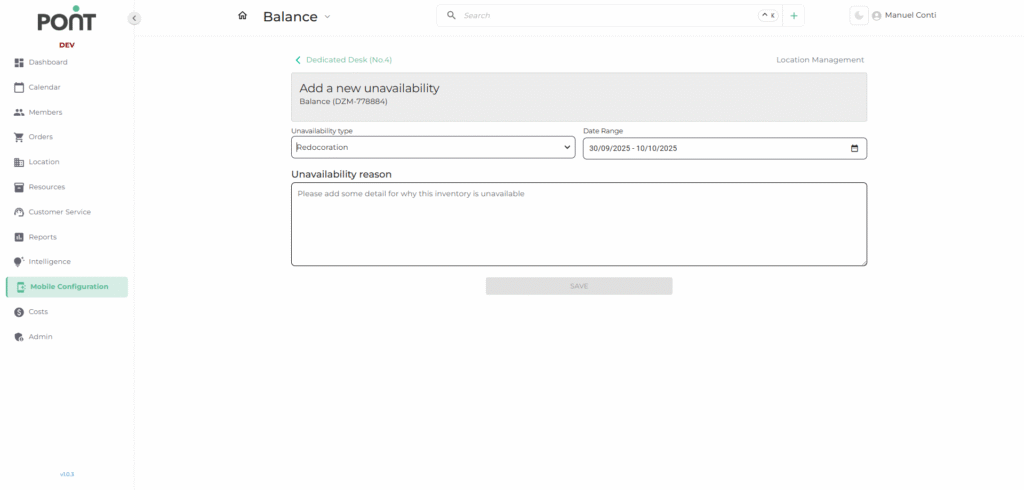
The Unavailability section is used to block a space for specific reasons such as maintenance or events.
📍 Steps
- Unavailability Type – Choose a category (e.g., Redecoration, Maintenance).
- Date Range – Set start and end dates during which the space is unavailable.
- Unavailability Reason – Provide a clear explanation for why the space is unavailable.
🔒 Impact
- Once saved, the space will not be available for bookings during the selected period.