Edit Company
The Edit Company section allows operators to update and manage all information about an existing company. Each subsection organizes details into categories, ensuring that company profiles remain accurate, compliant, and connected.
🏢 1. Company Details
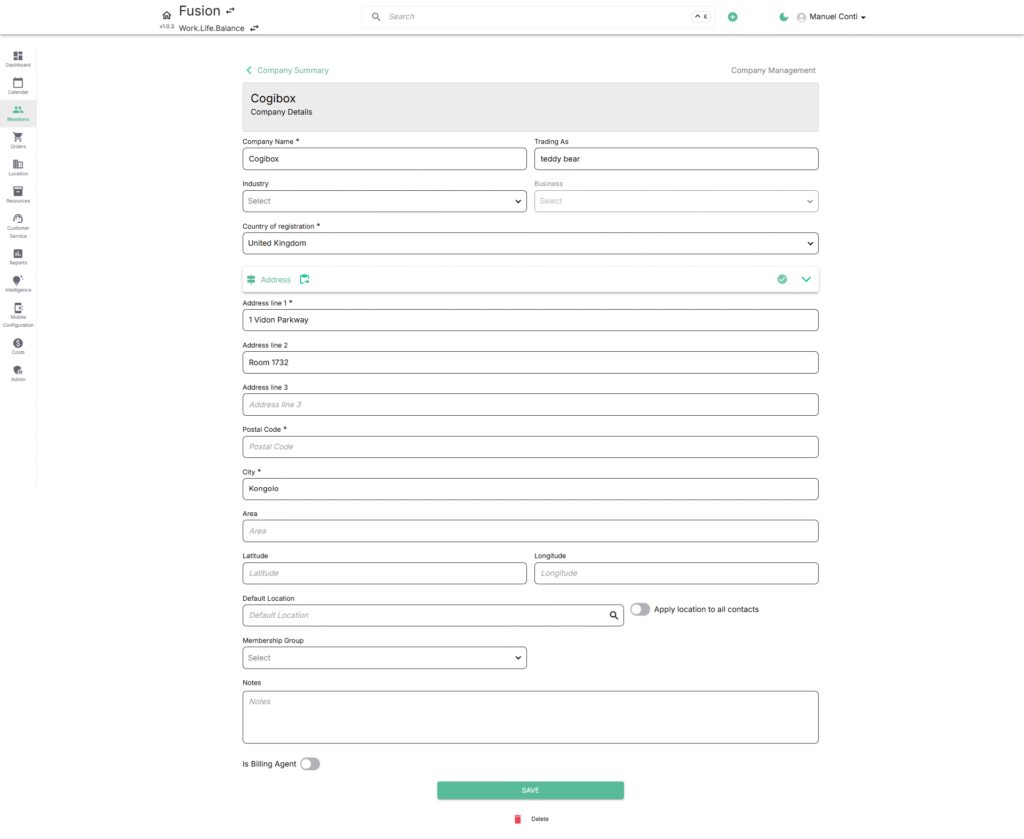
This section captures the core identity of the company. It also includes an expandable Address panel to capture full location details.
Primary Fields
- Company Name* – The official registered name of the company.
- Trading As – Alternate/brand name under which the company operates.
- Industry – Select the relevant industry sector (e.g., Technology, Healthcare).
- Business – Choose the specific business type or category.
- Country of Registration* – The legal registration country of the company.
📍 Expandable Address Section
Click ➕ Address to expand and add complete company address details.
Address Fields:
- Address Line 1* – Primary address (e.g., building/street).
- Address Line 2 – Secondary address (e.g., suite, room, office).
- Address Line 3 – Additional address information if needed.
- Postal Code* – ZIP/postal code of the company’s location.
- City* – The city where the company is located.
- Area – Specific neighbourhood, zone, or region.
- Latitude / Longitude – Geolocation coordinates for precise mapping.
Other Fields
- Default Location – Assign the company to a default coworking branch.
- Apply Location to All Contacts (Toggle) – Apply the company’s default location to all its associated contacts.
- Membership Group – Categorize the company under a group (e.g., Corporate, SME).
- Notes – Internal notes or special remarks for admin visibility only.
- Is Billing Agent (Toggle) – Mark the company as a billing agent if it handles payments on behalf of its members.
✅ Best Practice: Always expand and complete the Address section as a full address helps with billing accuracy, compliance, and reporting.
👥 2. Contact Management
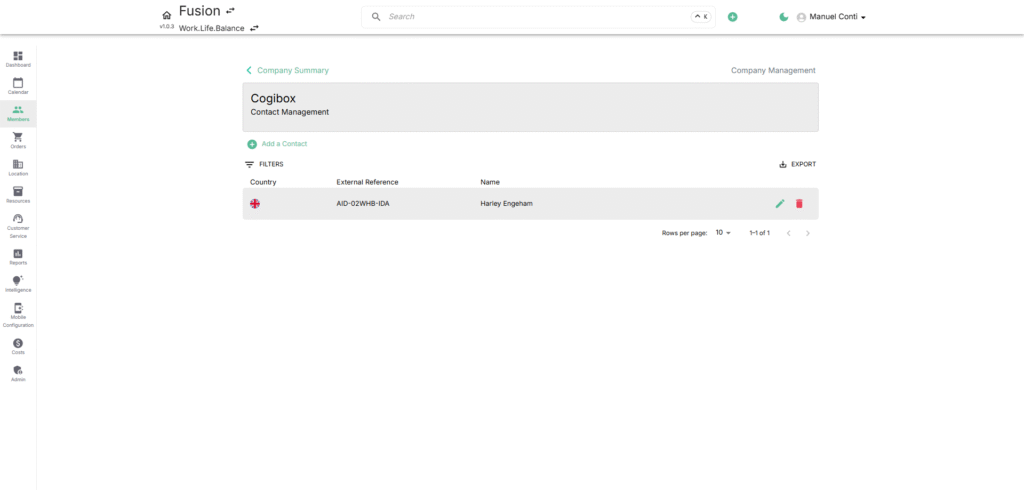
This section manages the people associated with the company.
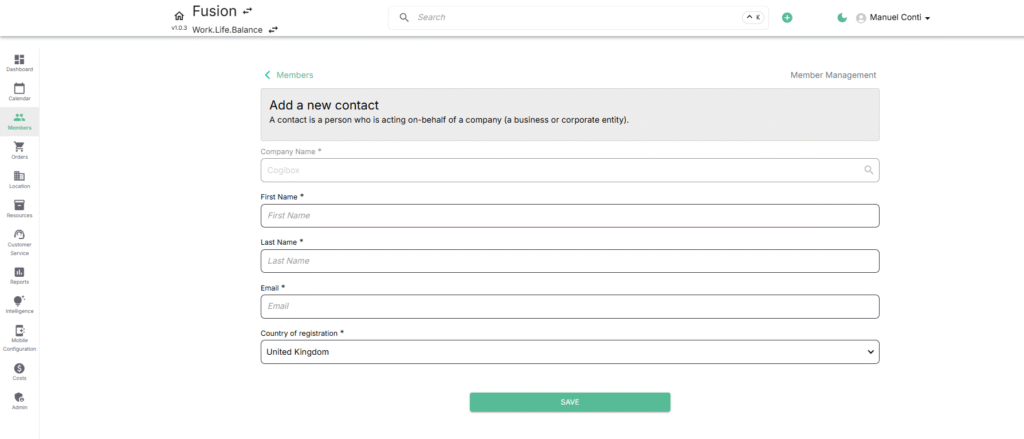
Features:
- Add a Contact – Create new individual profiles linked to the company.
- Contact Fields:
- First Name*, Last Name* – Personal identifiers.
- Email* – Required for communication and login purposes.
- Country of Registration* – Country where the individual is based.
- Filters – Narrow contacts by location, external references, or roles.
- Export – Download contact data in a structured format.
- Actions – Edit or delete existing contacts.
✅ Tip: Link every active company with at least one primary contact to streamline communication and billing.
📞 3. Communications
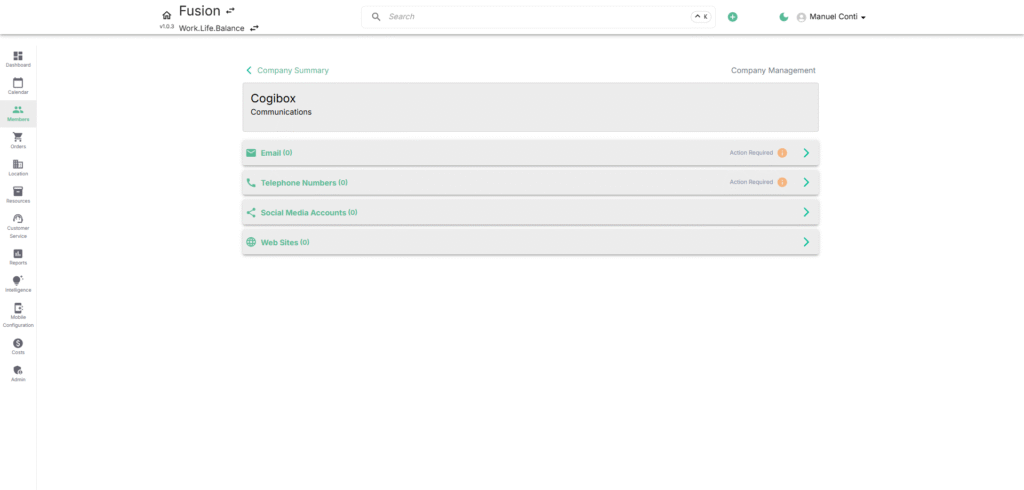
This section ensures that all company communication channels are properly logged.
- Email – Add one or multiple official company email addresses.
- Telephone Numbers – Save primary and secondary contact numbers.
- Social Media Accounts – Link corporate social handles.
- Websites – Register the company’s official website(s).
⚠️Action Required tags indicate missing or incomplete information.
✅ Tip: Keep at least one verified email and phone number updated to ensure smooth correspondence.
💳 4. Fiscal & Payment Information
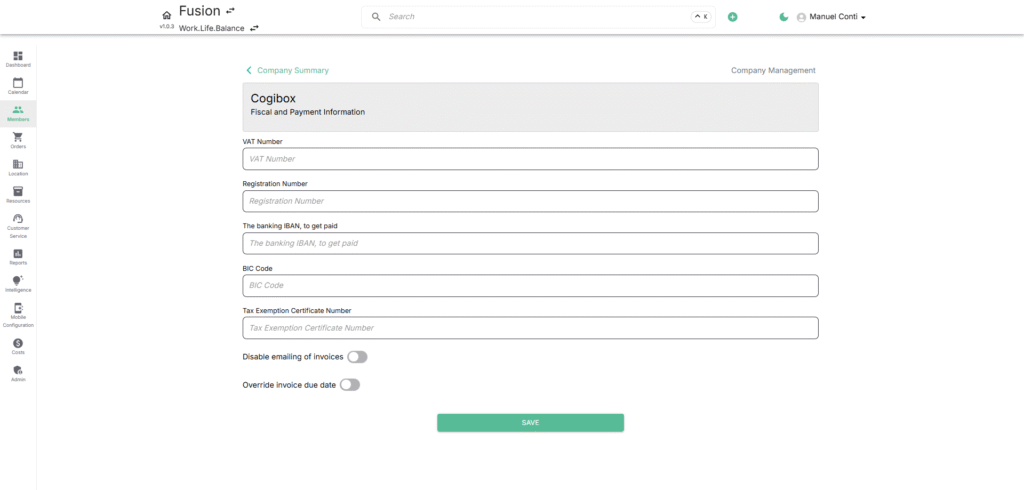
The Fiscal & Payment Information section centralizes all financial and compliance details for a company. It ensures accurate billing, smooth transactions, and regulatory compliance.
- VAT Number
Enter the company’s official VAT identification number for tax compliance.
✅ Used for invoicing and tax calculations. - Registration Number
The company’s legal registration number issued by the government or corporate registry.
✅ Helps uniquely identify the business entity. - Banking IBAN
Enter the company’s International Bank Account Number where payments will be credited.
✅ Essential for automated payments and international transfers. - BIC Code
Bank Identifier Code (also known as SWIFT). Used for global financial transactions.
✅ Required when the company’s bank is located abroad. - Tax Exemption Certificate Number
If the company is exempt from certain taxes, enter its exemption certificate number.
✅ Ensures invoices reflect correct tax handling. - Disable emailing of invoices
Enable this toggle if the company does not wish to receive invoices via email.
✅ Useful when invoices are managed manually or through a different channel. - Override invoice due date
Enable to set a custom due date for all company invoices, overriding system defaults.
✅ Helps in managing special payment agreements.
📝5. KYC Documentation
The KYC (Know Your Customer) Documentation section ensures each company meets legal and compliance standards by storing verified identification and business documents. Operators can upload, track, and manage files that confirm a company’s legitimacy.
Document Categories
- Government ID – Upload official government-issued identification
- Business Address Proof – Upload documents confirming the company’s registered business address
Upload Process
- Click Choose File to select a document from your system.
- Supported formats: .jpeg, .jpg, .png, .pdf
- Click Upload to save the file.
General Rules & Status
- You can upload up to 3 files under each document category.
- The system displays a status indicator (e.g., Action Required, Completed) to reflect the document’s verification state.
- Operators can return to this section at any time to add, replace, or update documents.
📦 6. Orders
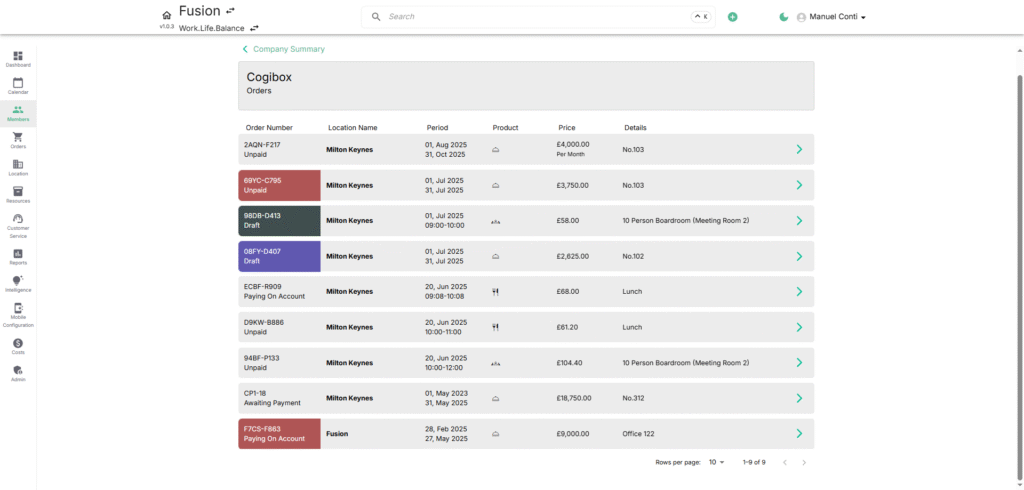
The Orders section provides a complete overview of all orders linked to the company. It helps operators manage contracts, bookings, and purchases made by the company, while also showing their financial and status details.
Order Table Fields
Each order in the list contains the following details:
- Order Number – Unique identifier for the order (e.g., 2AQN-F217).
- Status – Shows the financial/payment state of the order (e.g., Draft, Unpaid, Paying on Account, Awaiting payment).
- Location Name – The coworking branch or site linked to the order.
- Period – The duration of the order (start and end dates or specific time slots).
- Product – The product or service purchased (e.g., Office, Meeting Room, Catering, Lunch).
- Price – Total cost of the order.
- Details – Additional description such as office number, meeting room name, or specific notes.
Refer order section for more details
🎁 7. Benefits Details
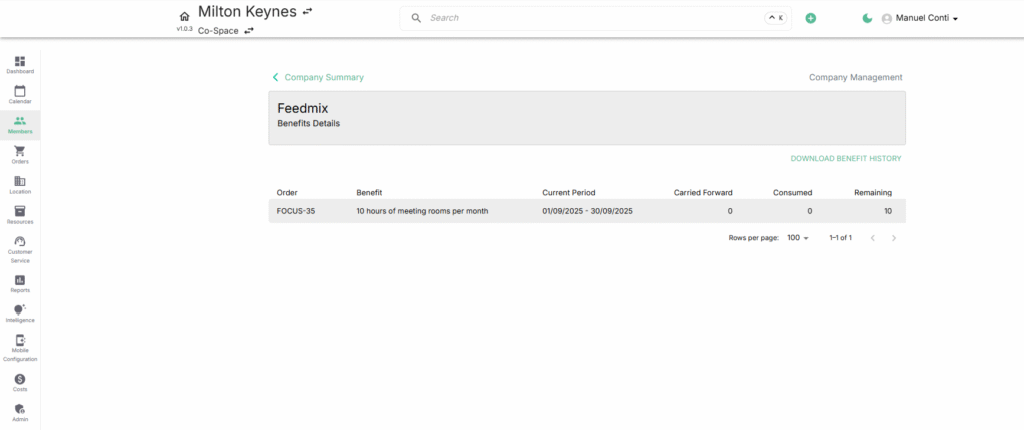
The Benefits section provides visibility into perks, allowances, or special entitlements allocated to a company. These benefits are typically tied to an order or membership plan, such as meeting room hours, printing credits, or service discounts.
- Order – The order linked to the benefit (e.g., FOCUS-35).
- Benefit – Description of the entitlement (e.g., 10 hours of meeting rooms per month).
- Current Period – Valid timeframe for the benefit (e.g., 01/09/2025 – 30/09/2025).
- Carried Forward – Unused benefit units from the previous period that rolled over.
- Consumed – The number of benefit units used within the current period.
- Remaining – The balance of unused benefit units available for the company.
👉 Export & History – Operators can download the benefit history for audits or reporting.
💰 8. Deposit Account
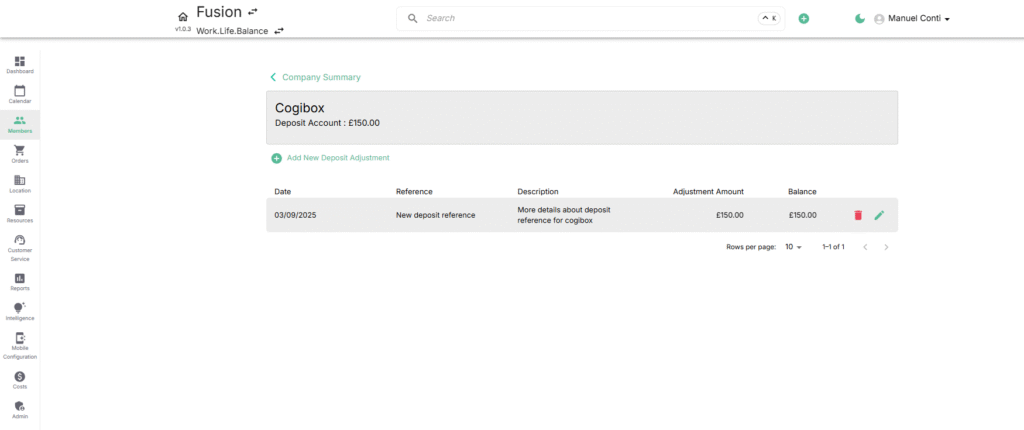
The Deposit Account section manages financial security deposits and adjustments associated with a company. It provides a transparent view of balances, transactions, and adjustments, ensuring clear financial records for both operators and clients.
➕ Deposit Adjustment Form
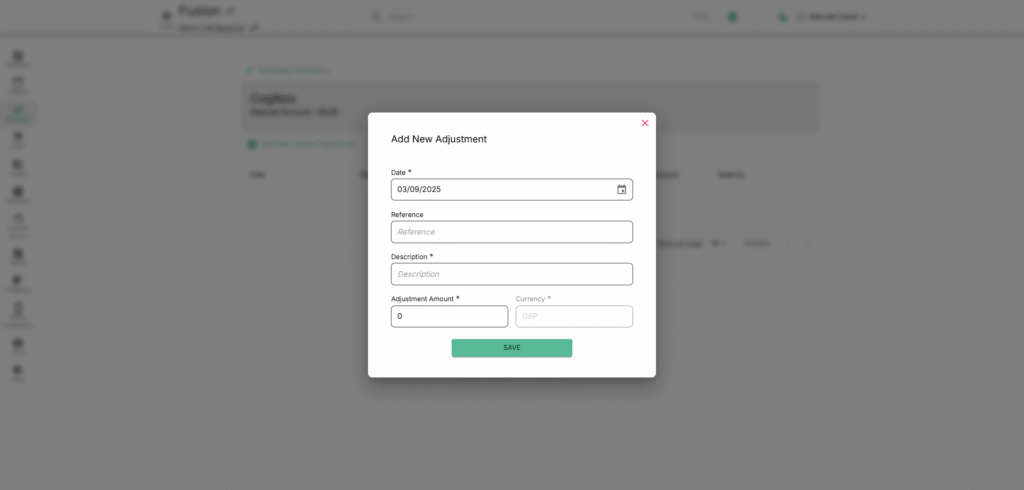
When adding a new adjustment, the following fields are available:
- Date* – The date of the adjustment entry.
- Reference – A unique identifier or internal reference for the adjustment.
- Description* – Short description explaining the adjustment reason (e.g., “Initial Deposit”, “Refund Adjustment”).
- Adjustment Amount* – The value of the adjustment (positive for addition, negative for deduction).
- Currency* – The currency in which the adjustment is recorded (e.g., GBP, USD, EUR).