Dashboard’s Overview
Overview
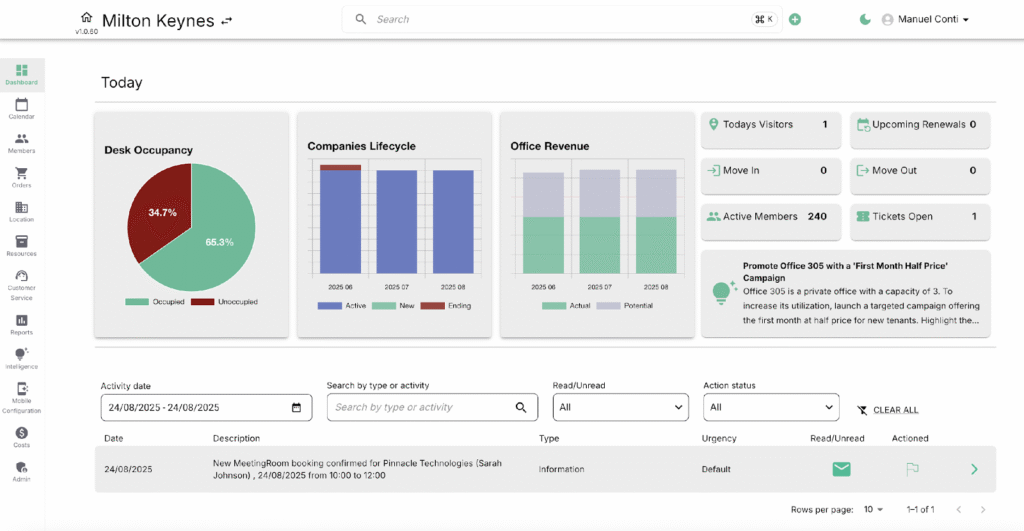
The Dashboard provides you with a high-level overview of your space’s operations. It brings together today’s key metrics, recent activities, and alerts so you can monitor performance and take quick action when needed.
Data Visualizations
It includes visual charts that highlight space utilization, company life-cycle stages, and revenue comparisons. These charts make it easy to understand key patterns and support informed decision-making.
Desk Occupancy – Pie Chart 🟢
- It represents the ratio of occupied vs. unoccupied desks.
- Purpose: Gives a quick snapshot of current desk utilization and helps identify available capacity.
Companies Lifecycle – Bar Chart 📊
- It represents a bar chart that groups companies into stages such as New, Active, and Ending.
- Purpose: Provides visibility into how companies are progressing, helping you track growth and anticipate upcoming contract expirations.
Office Revenue – Column Chart 💰
- It represents a column chart comparing actual revenue vs. potential revenue across recent months.
- Purpose: Lets you measure financial performance over time and spot revenue gaps or growth opportunities.
Key Counts
The following cards display today’s numerical counts related to members, visitors, and operations. These give you a quick snapshot of today’s activity and upcoming events.
| Card | Description |
|---|---|
| Active Members | Number of members currently active in the system. |
| Today’s Visitors | Count of visitors scheduled or checked in today. |
| Tickets Open | Total number of unresolved support tickets. |
| Upcoming Renewals | Memberships or contracts that are due for renewal soon. |
| Move In / Move Out | Members scheduled to move in or out today. |
Order History
The Daily Order Logs section provides a clear view of all order-related activities and updates that have taken place within the system. It helps track order progress, identify pending actions, and maintain an audit trail of changes.
Entities Displayed
| Entity | Description |
|---|---|
| Date | Date of the order. |
| Description | Details of the order or activity. |
| Type | Category of the log. |
| Urgency | Priority level of the activity. |
| Read/Unread ✉️ (Unread) / ✅✉️ (Read) | Status showing whether the entry is acknowledged. |
| Actioned 🚩 (Pending) / ✔️ (Completed) | Shows if a follow-up task is done. |
Filters Available
| Filter | Purpose |
|---|---|
| 📅 Activity Date | Select a date range to filter logs. |
| 🔍 Search by Type/Activity | Search logs using keywords or activity type. |
| ✉️ Read/Unread | Show only unread, read, or all logs. |
| 🚩 Action Status | Filter by pending or completed actions. |
| ❌ Clear All | Reset filters to default view. |
Action Options
| Action | Purpose |
|---|---|
| ✉️ / ✅✉️ Mark Read/Unread | Change the status of the log entry. |
| 🚩 / ✔️ Flag / Actioned | Mark as pending (flag) or completed (check). |
| ➡️ Expand Entry | View full details of the order log. |
| ◀️ ▶️ Pagination | Navigate through multiple log pages (10, 20 rows per page). |